Contents Menu Expand Light mode Dark mode Auto light/dark mode
Sosse 1.13 documentation
Logo
Sosse 1.13 documentation

🐾 Contents:

  • Sosse Documentation
  • Installation
    • Debian install
    • Debian upgrades
    • Pip install
    • Pip upgrades
    • Running in Docker
    • Docker upgrades
    • Running in Docker-compose
    • Docker-compose upgrades
  • Administration
    • Administration interface
    • 🌐 Crawl a new URL
    • βœ” Crawl queue
    • πŸ•· Crawlers
    • πŸ“Š Analytics
    • ⚑ Crawl Policies
    • Recursive crawling
    • Atom and RSS feeds
    • πŸ”€ Documents
    • ⭐ Tags
    • πŸ•Έ Domain Settings
    • πŸͺ Cookies
    • πŸ“‘ Webhooks
    • πŸ”— Excluded URLs
    • πŸ” External Search Engines
    • πŸ‘₯ Permissions
  • Guides
    • Website indexing & Search
    • Types of Archives
    • Convert an RSS feed into Summaries Using a Webhook and Local AI
    • Automatically Tagging Promotions and Deals with AI and Webhooks
    • Extracting Metadata from Public Procurement with JavaScript
    • Monitor Websites for Specific Keywords
    • Crawling an Authenticated Website
    • File Downloads
    • Guidelines for Ethical Use
    • Dealing with Captchas
  • Configuration file reference
  • Command Line Interface
  • User documentation
    • Searches
    • External search engine shortcuts
    • Search Engine shortcut defaults
    • Profile
    • History
    • Offline browsing, archived pages
    • Rest API
  • Screenshots
  • Changelog
Back to top

Website indexing & SearchΒΆ

Sosse allows you to crawl a website and search its pages for specific keywords. This process involves configuring a Crawl Policy to define how the site is crawled, followed by searching for the desired content.

Creating a Crawl PolicyΒΆ

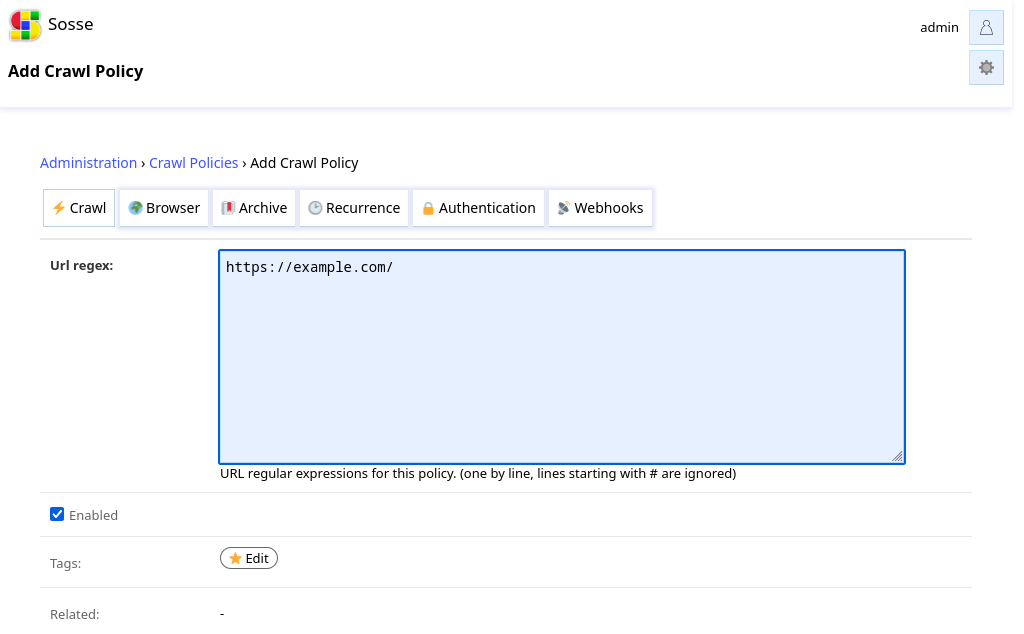
Crawl policies control how Sosse accesses and logs website content. This section covers key settings; for full details, see the Crawl Policies documentation.

By default, the crawler processes only directly queued pages. Enabling recursion ensures linked pages are also crawled:

  • In the ⚑ Crawl tab, enter a regular expression to match URLs for crawling.

  • In the πŸ”– Archive tab, disable Archive content if you only need to search pages without archiving.

  • In the πŸ•‘ Recurrence tab, adjust the crawl frequency as needed.

Note

By default, Sosse archives pages, detects if a browser is required for rendering, and adjusts crawl frequency based on site updates. Modify the policy to optimize crawl speed or reduce disk usage.
../_images/guide_search_policy.png

Starting the CrawlΒΆ

To begin crawling, go to the Crawl a new URL page and enter the site’s homepage URL.

Review the parameters, then click Confirm. Sosse will crawl the site and log pages matching the Crawl Policy.

Note

If pages aren’t crawled as expected, check whether the site’s robots.txt file is blocking the crawler. Bypass it only if authorized. You can review this setting in the πŸ•Έ Domain Settings for the website.

Searching the WebsiteΒΆ

Once crawling is complete, search for keywords directly from the homepage.

For advanced search options, see the search parameters documentation.

Additional ResourcesΒΆ

  • See Recursive crawling for advanced crawling strategies.

  • Explore the Guides for further assistance.

πŸ” Search discussions πŸ’¬ Discuss this page πŸ§‘β€πŸ’Ό Get professional support
Next
Types of Archives
Previous
Guides
Copyright © 2022-2025, Laurent Defert
Made with Sphinx and @pradyunsg's Furo
On this page
  • Website indexing & Search
    • Creating a Crawl Policy
    • Starting the Crawl
    • Searching the Website
    • Additional Resources