File Downloads
Sosse allows for the automation of file downloads from websites. The example below demonstrates how to download new eBooks daily from Project Gutenberg.
Project Gutenberg is a digital library offering over 75,000 free eBooks, including many classic literary works.
Note
Project Gutenberg provides several methods for retrieving its content if you wish to download it. See the Offline Catalogs and Feeds for more information. If you wish to download the full database, there are more appropriate methods than crawling, such as the Mirroring How-To. 🐞
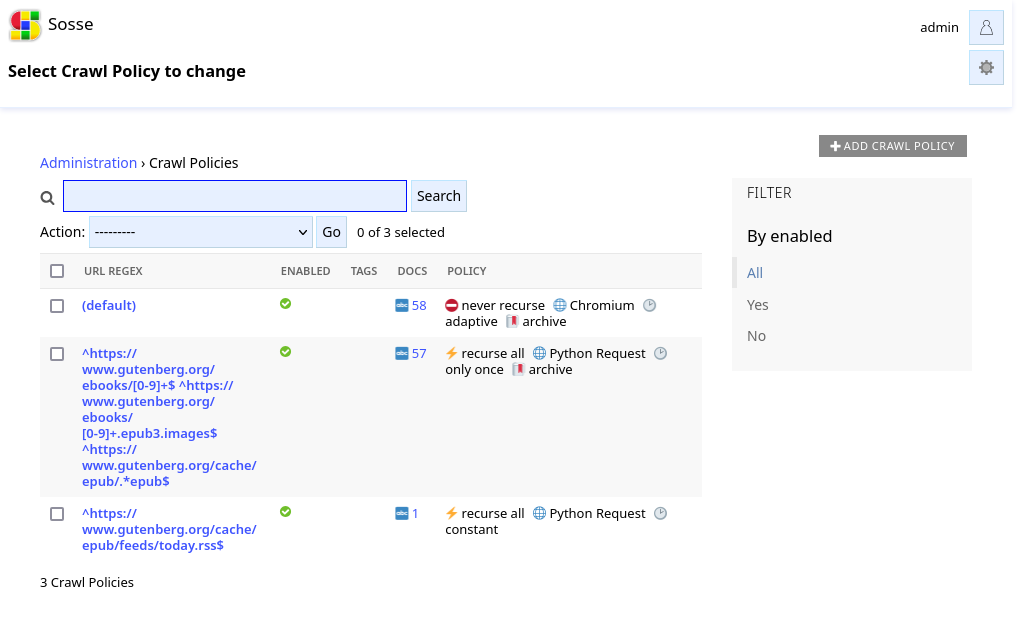
Creating Crawl Policies
Crawl policies are essential for controlling how Sosse accesses and downloads content from websites. For more details, see the Crawl Policies documentation.
For Project Gutenberg, we will create two policies:
RSS Feed Policy This policy reads the RSS feed of Project Gutenberg daily to monitor new content. Configure it as follows:
In the
⚡ Crawltab, use a regular expression^http://www.gutenberg.org/cache/epub/feeds/today.rss$to target the daily RSS feed.In the
🔖 Archivetab, disableArchive content(as we don’t need to archive the original feed).In the
🕑 Recurrencetab, setCrawl frequencytoConstant timeand clear theRecrawl dt maxfield.
Book Download Policy This policy downloads the reference page and the EPUB version of each new book identified in the RSS feed. Configure it as follows:
In the
⚡ Crawltab, use the regular expressions:^https://www.gutenberg.org/ebooks/[0-9]+$for the reference page.^https://www.gutenberg.org/ebooks/[0-9]+.epub3.images$and^https://www.gutenberg.org/cache/epub/.*epub$for the EPUB files.
In the
🕑 Recurrencetab, setCrawl frequencytoOnce(as reference pages and books do not need updates after initial download). Additionally, clear both theRecrawl dt minandRecrawl dt maxfields.
Start Crawling
To start crawling, go to the Crawl a new URL page and enter the URL od the RSS feed:
http://www.gutenberg.org/cache/epub/feeds/today.rss.
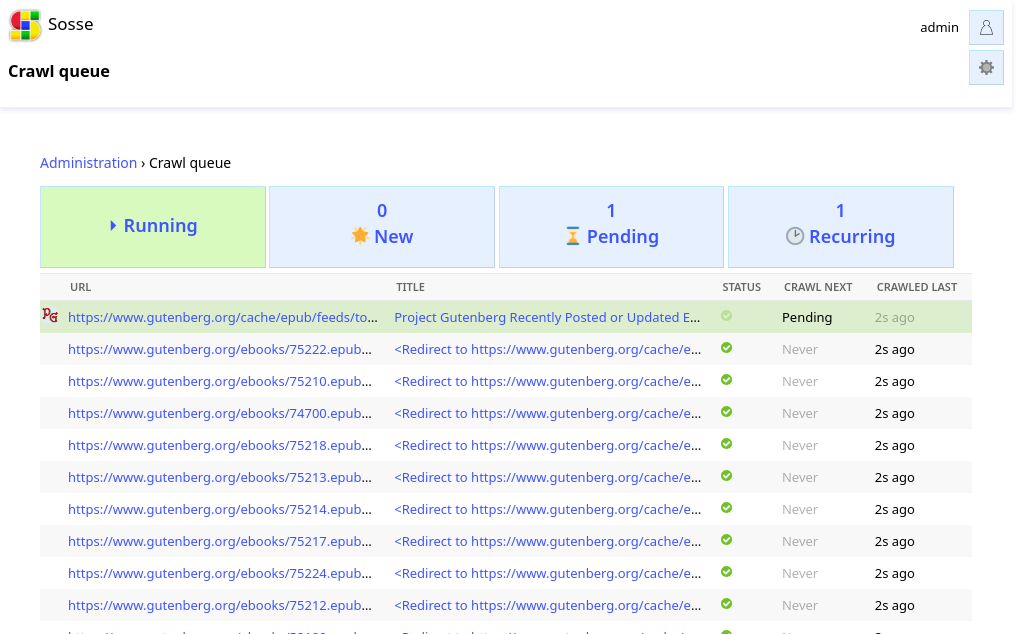
Check the parameters, then click Confirm. Once confirmed, you will be able to see the crawl queue retrieving the
files from the feed.
View the Library
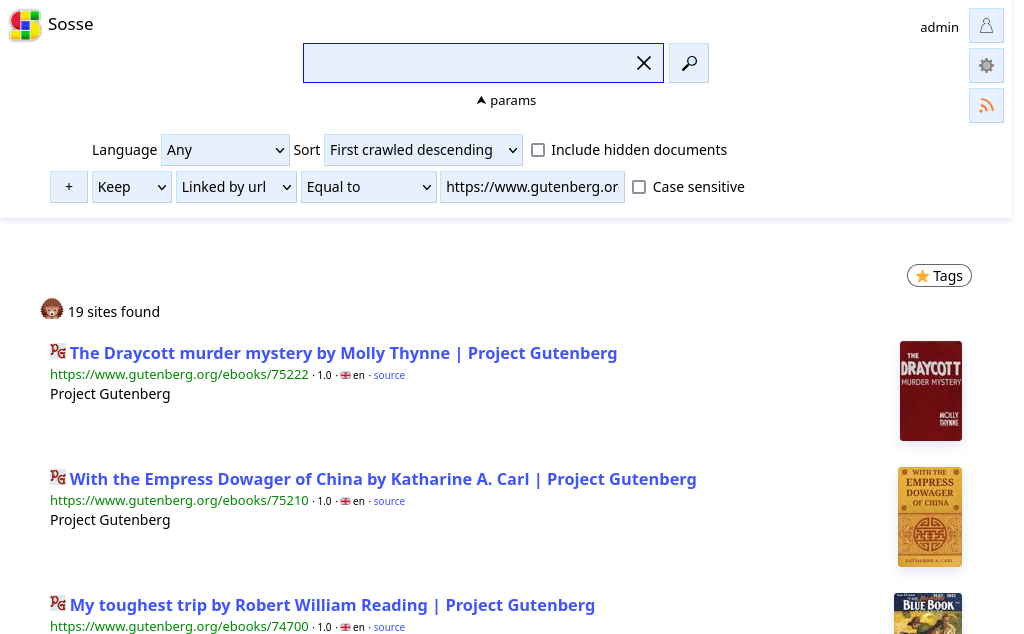
To view all the books indexed from the RSS feed, go to the homepage and unfold the Params section. We can
execute a query to fetch all the pages linked within the RSS feed, with the following parameters:
Sort:
First crawled descending.Search options: - Acion:
Keep- Field:Linked by URL- Operator:Equal to- Value:https://www.gutenberg.org/cache/epub/feeds/today.rss
This will display all the books that were loaded from the RSS feed.
Each link will point to the archived page containing information about the book:
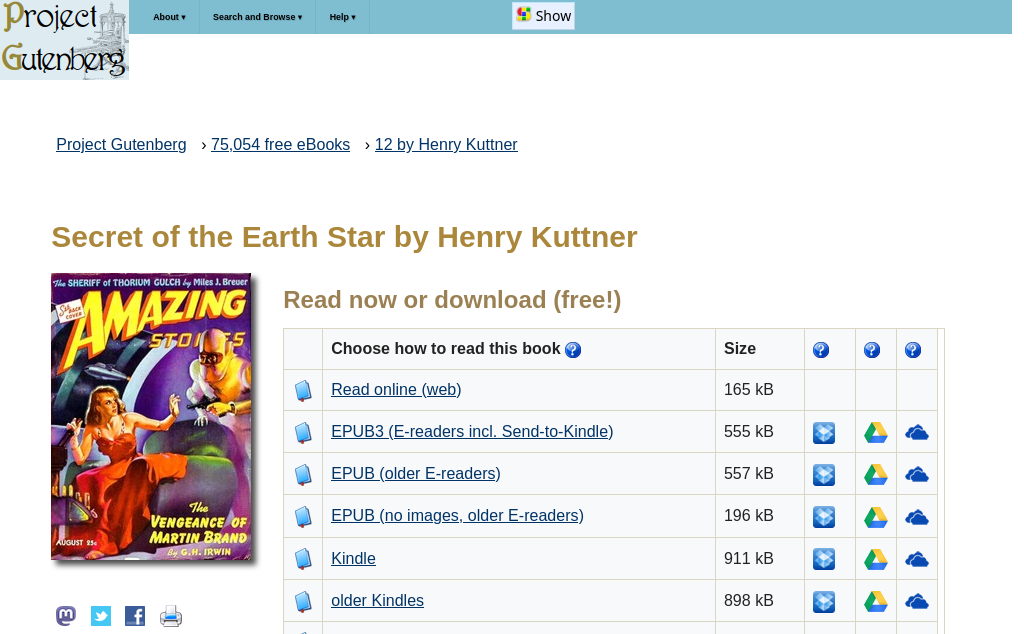
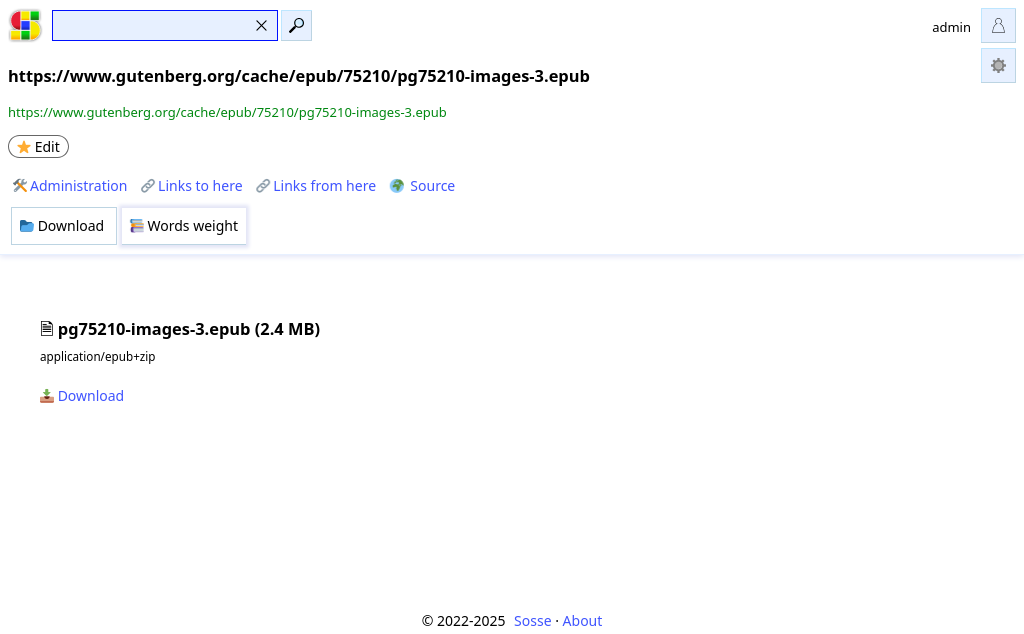
Following the link, you will be able to download the book:
Additional Options
You may also be interested in the max_file_size (defaults to 5 MB) and max_html_asset_size (defaults to 50 MB) configuration options, which control the size limits of files being downloaded.
Additionally, you can use the atom feed feature to create an Atom feed that points to the downloaded EPUB files, which could be useful for integrating with an EPUB reader or sharing updates.