Automatically Tagging Promotions and Deals with AI and Webhooks
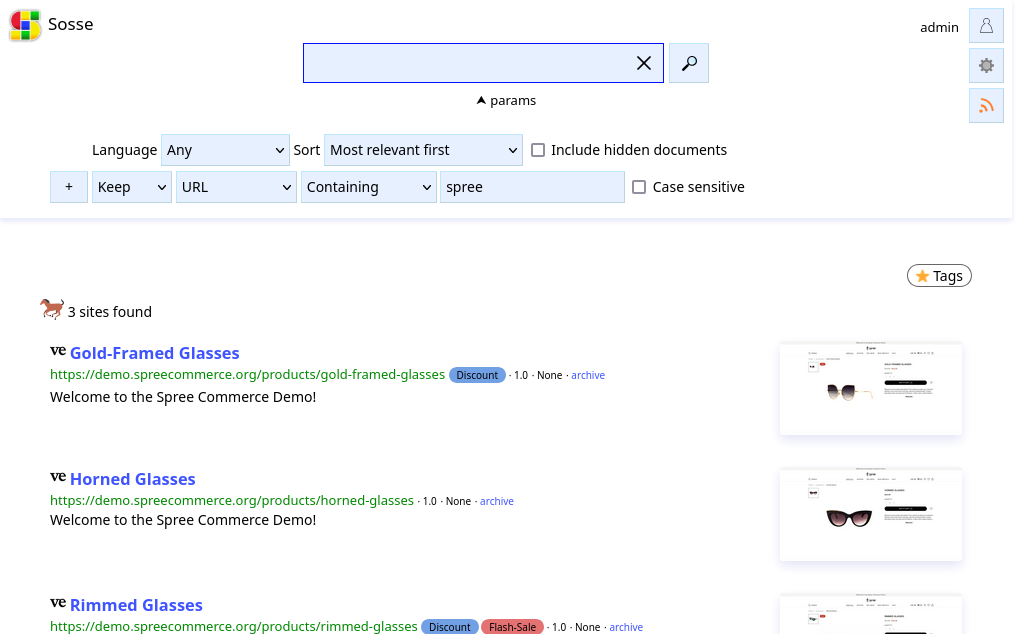
This guide shows how to configure Sosse to automatically generate ⭐ Tags for web pages — such as promotions, discounts, or other valuable offers — using AI. It uses 📡 Webhooks and ChatGPT (or other AI services) to analyze page content and produce relevant tags. For demonstration purposes, this guide uses Spree, a popular open-source eCommerce platform.
Note
While this demo uses OpenAI’s ChatGPT API, other AI providers such as Claude (Anthropic), PaLM (Google), or Cohere can be used. Webhooks are fully customizable.
Warning
To use ChatGPT, you’ll need an OpenAI API key.
Set Up a Crawl Policy
First, define a crawl policy to handle the web pages you want to analyze. See the ⚡ Crawl Policies for more details.
Navigate to
⚡ Crawl Policiesin the admin panel.Create a New Policy:
Use an URL pattern that matches URLs of interest, ensuring that only relevant pages are processed for tag generation:
^https://(www\.)?(example-shop|forum|blog)\.com/.*/(promo|deal|product).*
Set
RecursiontoNever Crawlto limit recursion, we’ll process only manually queued URLs.Under the
🌍 Browsertab, chooseFirefox, orChromiumas the browser.In the
Scriptfield, add a script to extract the HTML description of the product and save it in the document’smetadatafield. For example, for a Spree product page, you might use:const detailsText = document.getElementById('product-details-page'); const text = detailsText.innerHTML; return {metadata: {productDetails: text}};
Under the
🕑 Recurrence, select wanted crawl frequency (e.g.,Daily).
Note
While sending plain text to ChatGPT is more efficient, we opt to send the full HTML in this case. This allows ChatGPT to interpret visual elements, such as a strikethrough price, ensuring better contextual understanding of the data.
Using a Webhook to Generate Tags with ChatGPT
Define a Webhook to process the web pages you want to analyze. Refer to 📡 Webhooks for more details.
Navigate to
📡 Webhooksin the admin panel.Create the Webhook:
Name:
Generate TagsURL:
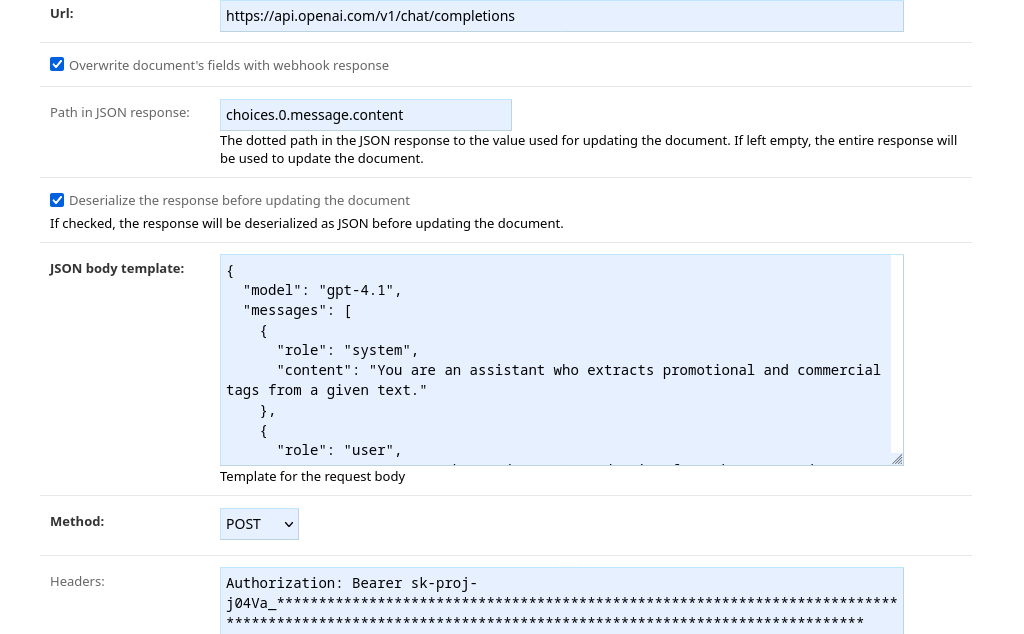
https://api.openai.com/v1/chat/completionsCheck Overwrite document’s fields with webhook response : This ensures that the tags generated by the webhook will replace any existing tags in the document.
Path in JSON Response:
choices.0.message.content: This specifies where to find the generated tags in the response from OpenAI.Check Deserialize the response before updating the document : This ensures that Sosse can parse the JSON content encapsulated within a text field in the response from OpenAI.
JSON body template : This is the ChatGPT query where the HTML content will be passed using the
${metadata.productDetails}variable:{ "model": "gpt-4.1", "messages": [ { "role": "system", "content": "You are an assistant who extracts promotional and commercial tags from a given text." }, { "role": "user", "content": "Extract the product name and price from the HTML and return them under \"metadata\": { \"name\": \"...\", \"price\": \"...\" }. Identify any promotional tags from this list: [\"Discount\", \"Bogo\", \"Limited-Time\", \"Clearance\", \"Bundle-Deal\", \"Seasonal-Sale\", \"Flash-Sale\", \"Free-Shipping\", \"Loyalty-Discount\", \"Coupon-Code\", \"Alert\"] If there's a promotion, include the relevant tags. Return this format: { \"tags\": [...], \"metadata\": { \"name\": \"...\", \"price\": \"...\" } } If no promo, return: { \"tags\": [], \"metadata\": { \"name\": \"...\", \"price\": \"...\" } } HTML to analyze: ${metadata.productDetails} " } ], "temperature": 0.3 }Method:
POSTHeaders:
{
  "Authorization": "Bearer <YOUR_OPENAI_API_KEY>",
}
We request ChatGPT to extract the product name and price from the HTML content and identify any promotional tags. The expected response format is:
{
  "tags": ["Discount", "Free-Shipping"],
  "metadata": {
    "name": "Example Product",
    "price": "$19.99"
  }
}
The format matches the Rest API response, enabling us to overwrite any fields in the document.
Warning
The Webhook test button at the bottom of the page allows you to trigger the webhook with an example document.
However, the example document lacks the ${metadata.productDetails} field containing the custom HTML extracted by
the Crawl Policy’s script, which will result in the error: “Invalid path: metadata.productDetails”. To avoid this,
you can pass the page’s text content using the document’s ${content} field instead.
You can now go back to the ⚡ Crawl Policies page and select the newly created webhook under the
📡 Webhooks tab.
Page Crawling and Webhook Results
Navigate to the Crawl a new URL page and paste the product pages you want to index.
Click Confirm to queue the crawl jobs.
After the crawl jobs are completed, review the results on the 🔤 Documents page.
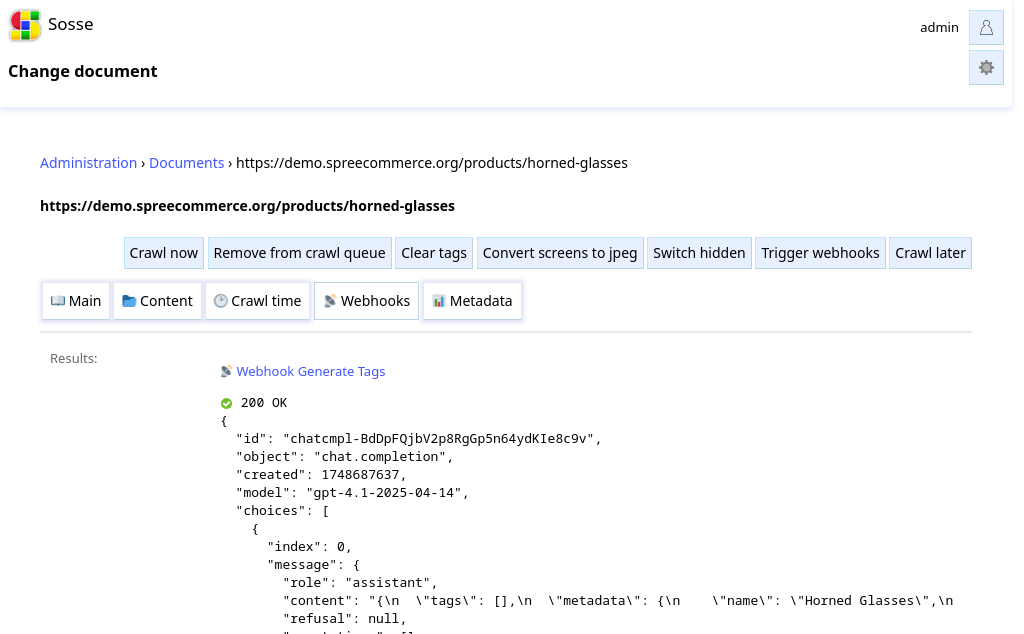
Access the full webhook response under the
📡 Webhookstab.
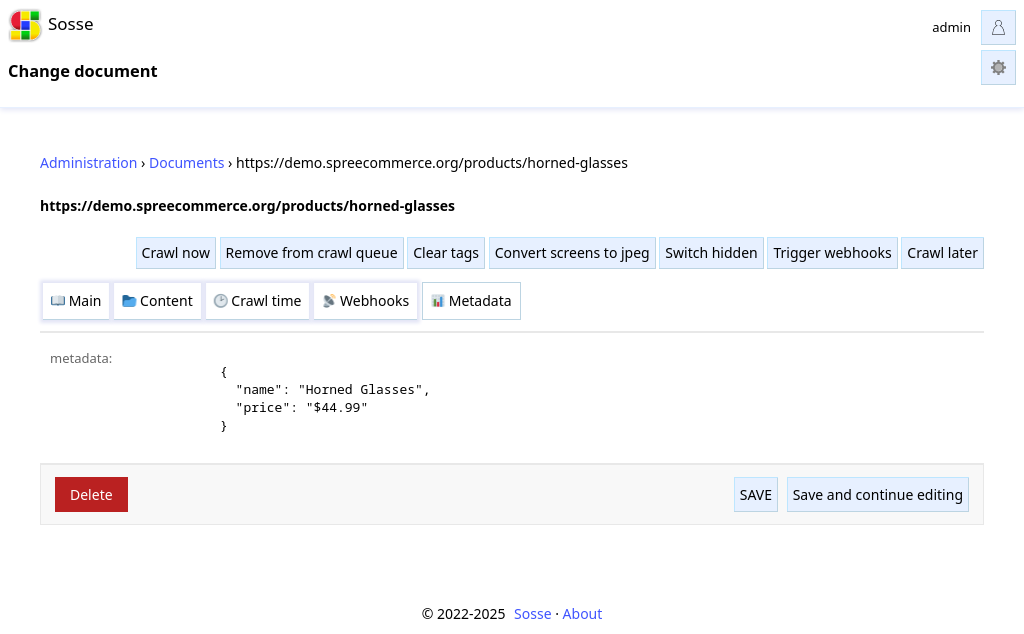
View the metadata generated by the webhook under the
📊 Metadatatab, which includes details like the product name and price.