Extracting Metadata from Public Procurement with JavaScript
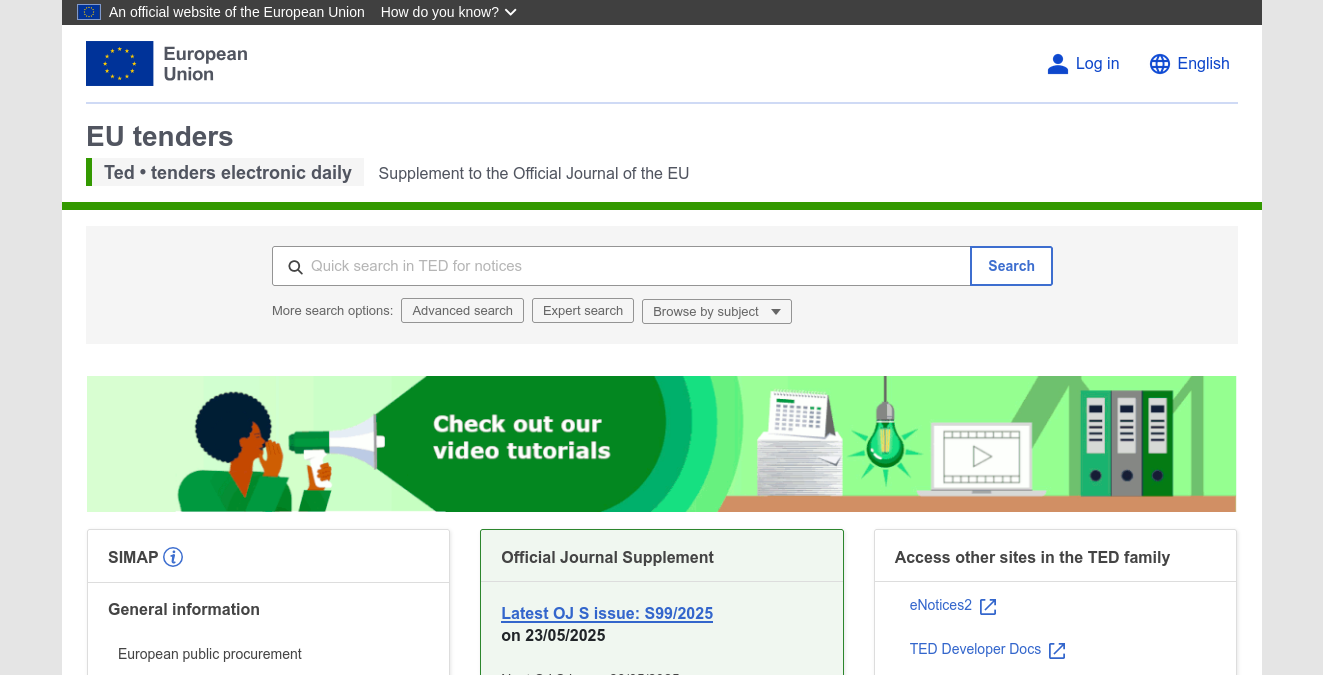
This guide explains how to use Sosse to crawl procurement notices published on the European public procurement portal, TED (Tenders Electronic Daily, available at ted.europa.eu). TED is the official platform for publishing public procurement notices from across Europe. We’ll show how to extract metadata from these offer pages using JavaScript, covering setup, crawling, and export.
Setting up a Collection for Metadata Extraction
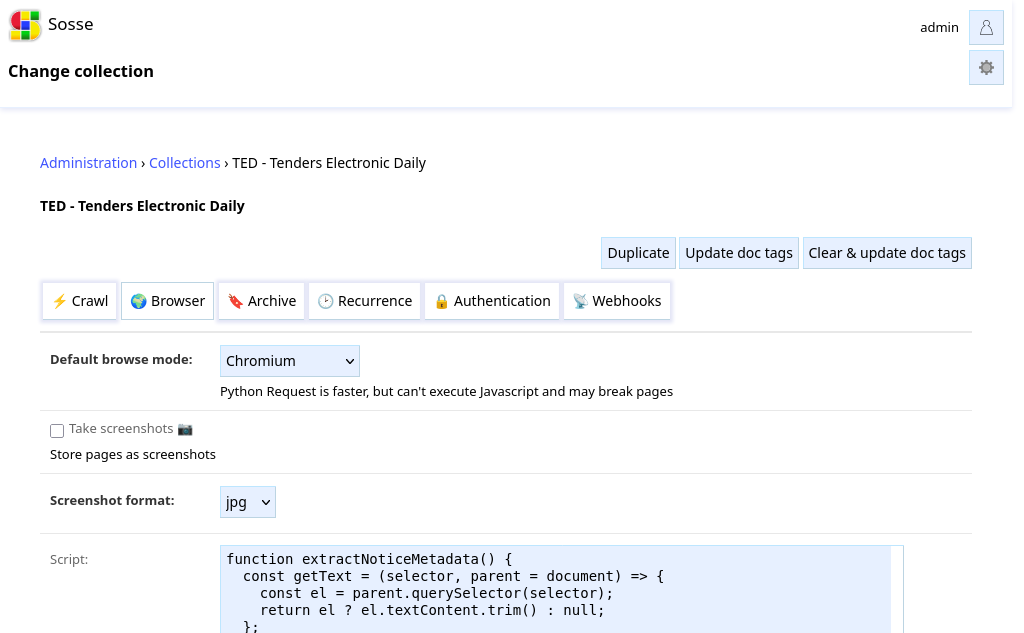
Collections define how Sosse interacts with targeted web pages. In this scenario, we want to extract structured data (such as offer title, deadline, country, etc.) from public offer listings using JavaScript. For more background, see the ⚡ Collections documentation.
Navigate to Collections: Go to the ⚡ Collections page from the admin menu.
Create a Collection: - In the ⚡ Crawl tab, set an
Unlimited depth URL regexthat targets the public offer detail pages on TED:^https://ted.europa.eu/en/notice/-/detail/[0-9]*-.*
In the
🌍 Browsertab, setDefault browse modetoFirefoxorChromium. We select a browser that can execute JavaScript.In the same tab, in the
Scriptfield, provide a script that will run in the browser context of each page. Any data returned by the script is used to update the data of the crawled URL. Content-specific metadata can be stored in the metadata field (see Collection Script).You can write your own script or use AI tools such as GitHub Copilot or ChatGPT to generate a script. To get started, visit an example offer page, such as https://ted.europa.eu/en/notice/-/detail/123456-2024 and inspect the elements you want to extract:
return {
  metadata: {
    title: document.querySelector('h1')?.innerText || '',
    ...
  }
};
Under the
🕑 Recurrencetab, setCrawl frequencytoOnceto avoid re-crawling the same articles.
Searching for Public Offers and Queuing URLs
Search for Offers:
Go to the TED (Tenders Electronic Daily) search page.
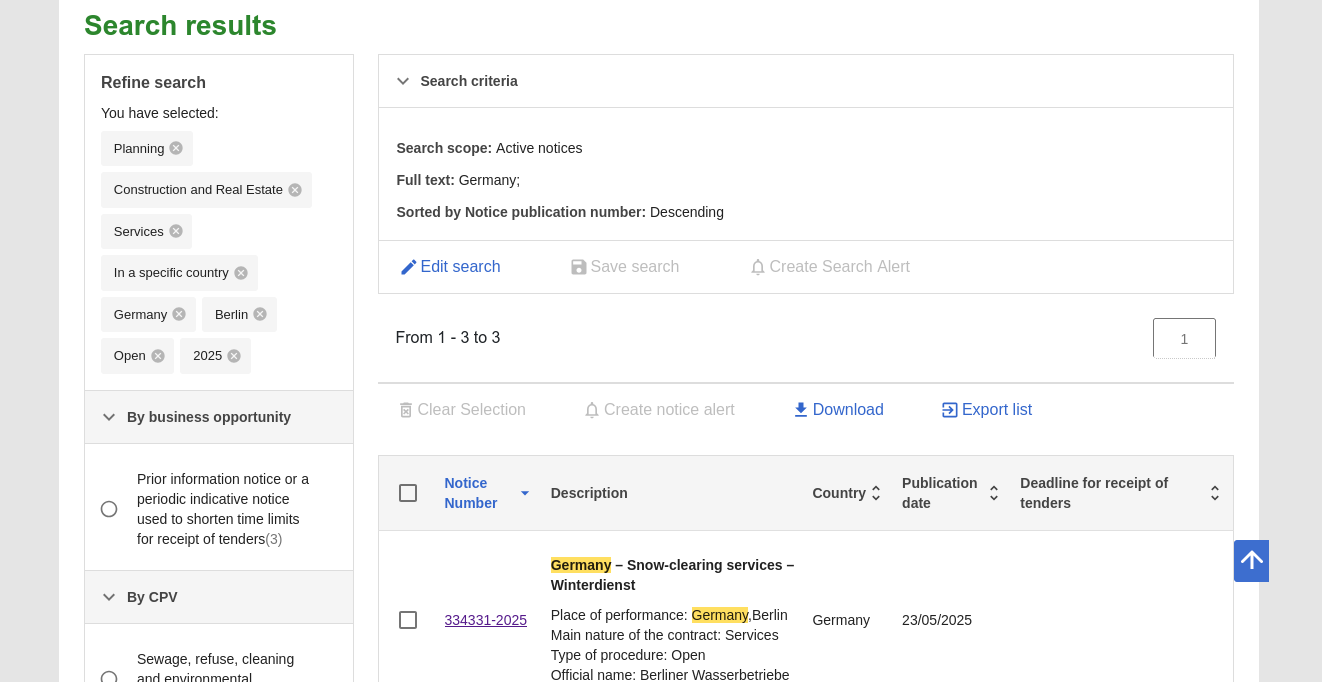
Use the filters to select the types of offers you’re interested in.
Queue Search Result URLs in Sosse:
Copy the URLs of the offer detail pages you wish to crawl.
Go to the Crawl a new URL page in Sosse and paste the URLs.
Click
Add to Crawl Queueto queue the crawl jobs.
Note
By default, this will crawl the offers and regularly check for new ones as defined in the ⚡ Collection. See 🕑 Recurrence tab.
Reviewing Extracted Results
After the crawl jobs complete, you can review the extracted metadata in several ways:
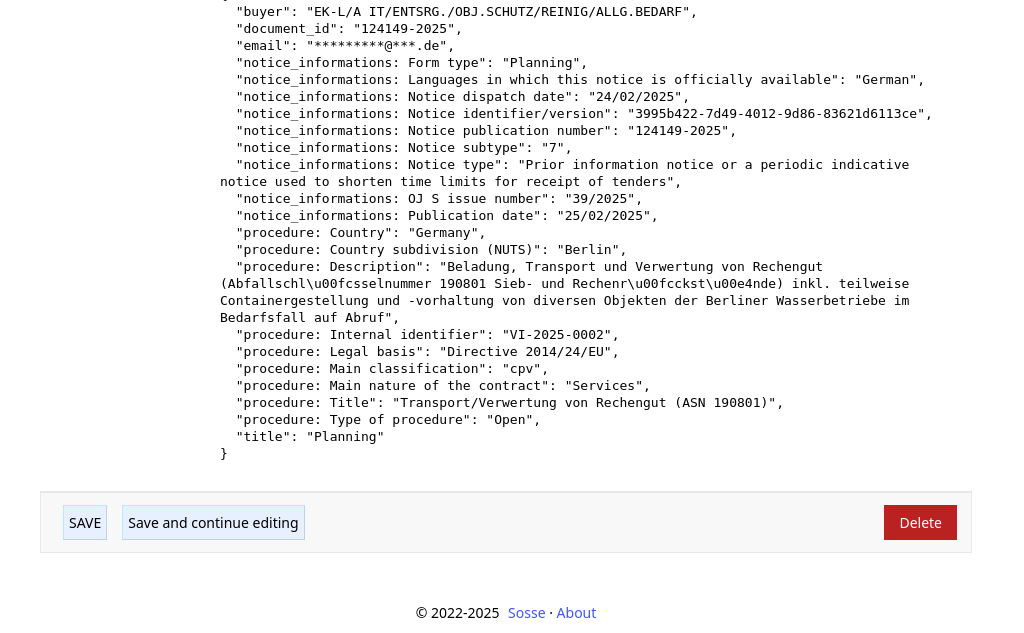
From the Document Page: Go to the 🔤 Documents page to view the extracted data in the
📊 Metadatasection.
CSV Export: On the Searches page, use the
CSV Exportfeature to download the results.
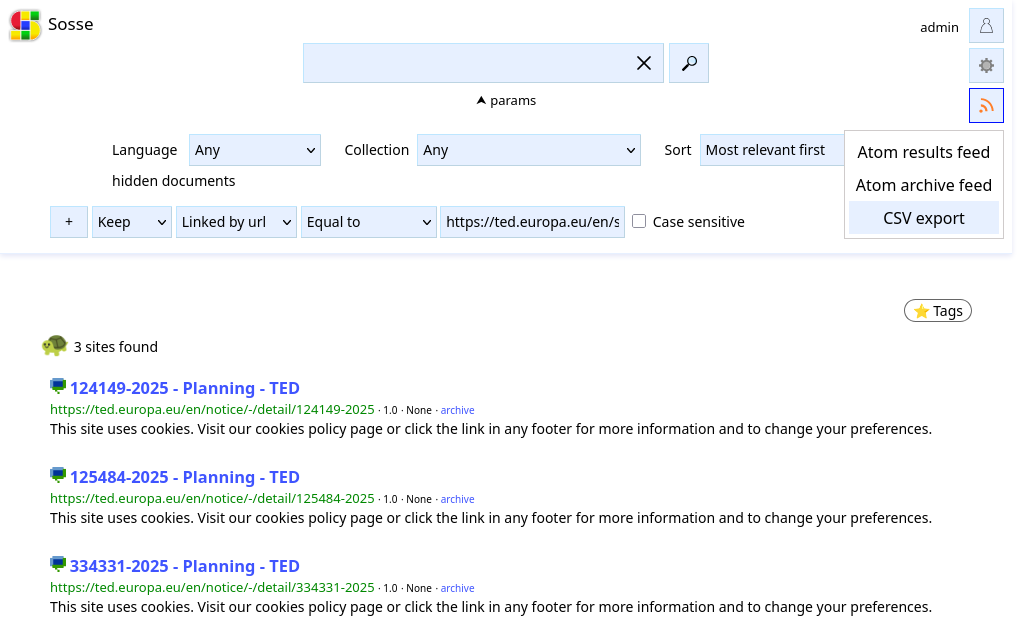
Rest API: Access the extracted results via the Rest API, which allows programmatic access to the data.
Additional Options
By combining Sosse’s crawling and JavaScript extraction features, you can efficiently monitor TED’s public offer portal, extract structured data, and automate notifications.
To stay updated about new or changed offers, you can:
Notify other services via 📡 Webhooks
Generate Atom feeds to subscribe to updates (see the Atom feeds guide).