⚡ Collections
Collections group documents and define crawling rules that determine which pages are indexed
and how they are processed. Access the collection list by clicking ⚡ Collections from the Administration interface.
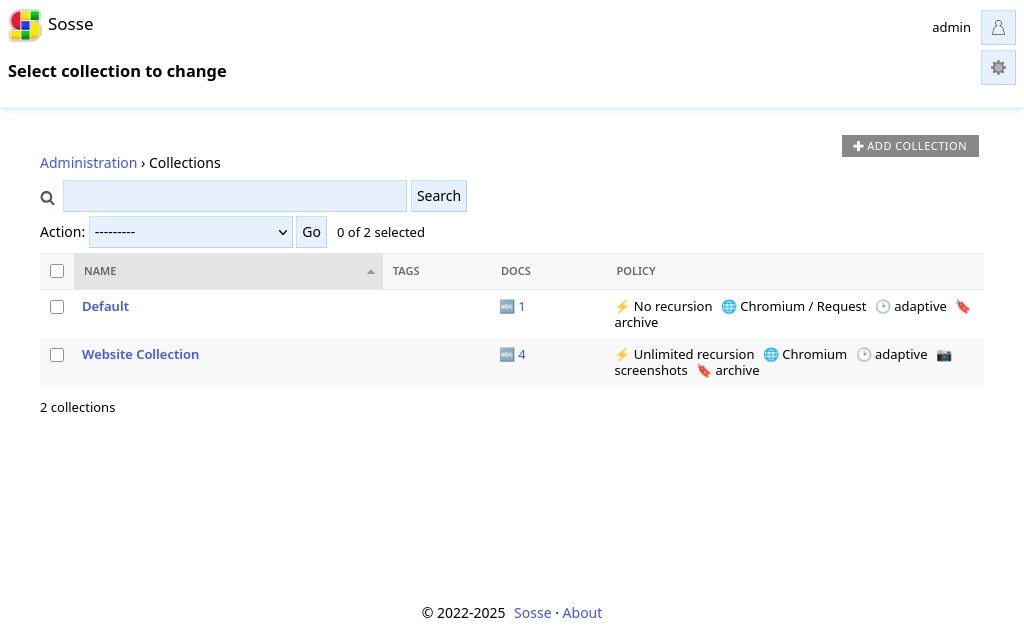
Each collection acts as a template that controls crawling behavior and document processing. When you manually add URLs, you select which collection to use. When the crawler discovers new links during crawling, they automatically inherit the same collection as their parent page.
You can choose which collection to add an URL to and trigger crawling in the 🌐 Crawl a new URL page
(see 🌐 Crawl a new URL).
⚡ Crawl tab
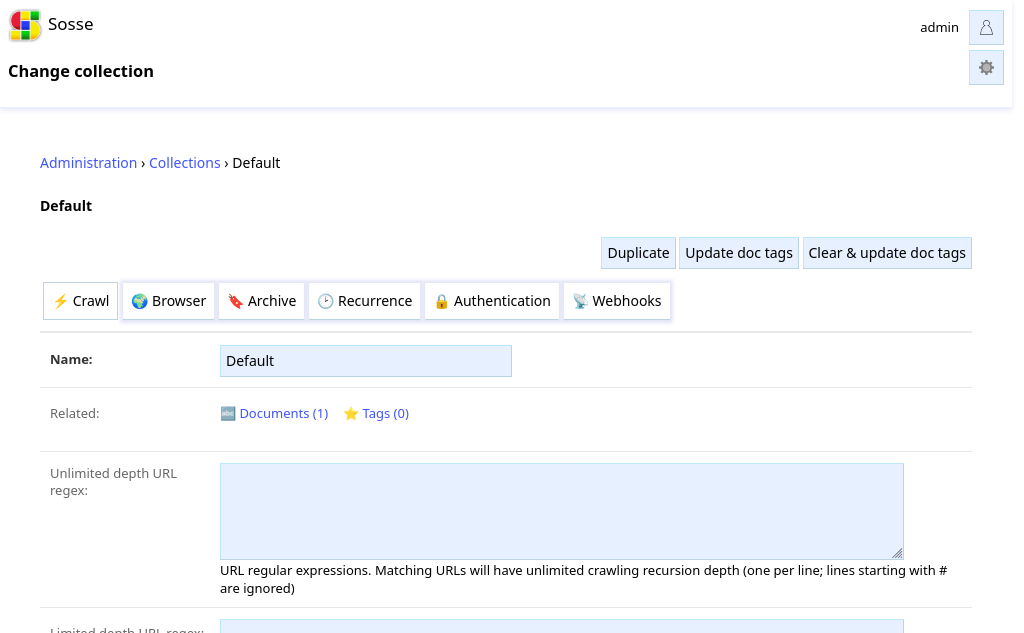
URL patterns
Collections use three types of URL regular expressions to control crawling:
Unlimited depth URL regex: URLs matching this pattern are crawled without depth limits. Multiple regex can be set, one per line. Lines starting with
#are treated as comments.Limited depth URL regex: URLs matching this pattern are crawled with limited recursion depth (see
Limited recursion depthsetting).Excluded URL regex: URLs matching this pattern are excluded from this collection and will not be crawled.
Limited recursion depth
This setting defines the maximum depth for crawling URLs that match the Limited depth URL regex pattern.
Mimetype regex
The mimetype of pages must match the regex to be crawled.
Index URL parameters
When enabled, URLs are stored with URLs parameters. Otherwise, URLs parameters are removed before indexing. This can be useful if some parameters are random, change sorting or filtering, …
Store extern links
When enabled, links to non-indexed pages are stored.
Hide documents
Documents indexed will be hidden from search results. The hidden state can later be changed from the document’s settings.
Thumbnail mode
Defines the source for pages thumbnails displayed in the search results and home page:
Page preview from metadata: the thumbnail is extracted from the page metadata (using Linkpreview).Preview from meta, screenshot as fallback: the thumbnail is extracted from metadata if available, a screenshot is taken otherwise.Take a screenshot: a screenshot is used as thumbnail.No thumbnail: no thumbnail is saved.
Note
To take screenshot as thumbnails, the Default browse mode needs to be Chromium or Firefox.
Queue links to any collection
When enabled, URLs that don’t match this Collection’s regex patterns will be checked against all other Collections. If a matching Collection is found, the URL will be queued there instead of being skipped.
This allows automatic cross-collection crawling where pages discovered during crawling can be indexed in the most appropriate Collection based on their URL patterns.
Queue links to specific collections
When Queue links to any collection is disabled, you can select specific Collections to check for URLs that don’t
match this Collection’s patterns. This provides more granular control over cross-collection crawling.
Only the selected Collections will be checked, and if a URL matches one of them, it will be queued there. If multiple Collections match, the first one (based on the longest regex match) will be used.
Note
Queue links to any collection takes priority over Queue links to specific collections. If both are configured,
only the “any collection” mode will be active.
🌍 Browser tab
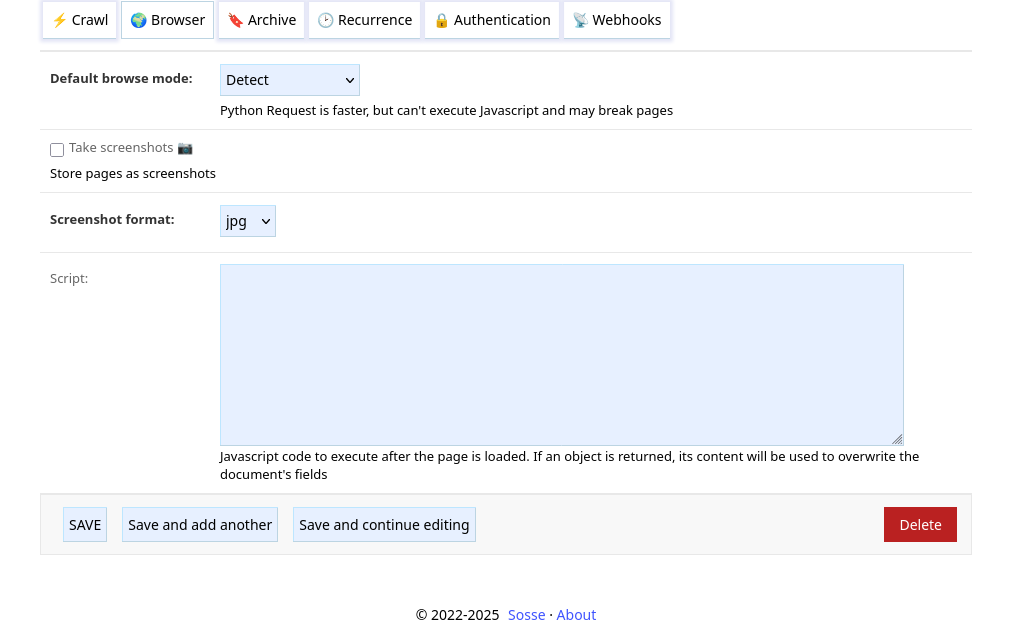
Default browse mode
Can be one of:
Detect: the first time a domain is accessed, it is crawled with a browser and Python Requests. If the text content varies, it is assumed that the website is dynamic and the browser will be used for subsequent crawling of pages in this domain. If the text content is the same, Python Request will be used since it is faster. By default, the browser used is Chromium, this can be changed with the default_browser option.Chromium: Chromium is used.Firefox: Firefox is used.Python Requests: Python Requests is used.
Take screenshots
Enables taking screenshots of pages for offline use. When the option Create thumbnails is disabled, the screenshot is displayed in search results instead.
Note
This option requires the Default browse mode to be Chromium or Firefox in order to work.
Screenshot format
Format of the image JPG or PNG.
Note
This option requires the Default browse mode to be Chromium or Firefox in order to work.
Script
Javascript code to be executed in the context of the web pages when they have finished loading. This can be used to handle authentication, validate forms, remove headers, …
For example, the following script could be used to click on a
GDPR compliance I agree button:
const BUTTON_TEXT = "I agree";
const XPATH_PATTERN = `//*[contains(., "${BUTTON_TEXT}")]`;
const button = document.evaluate(XPATH_PATTERN, document, null, XPathResult.FIRST_ORDERED_NODE_TYPE, null);

if (button && button.singleNodeValue) {
    button.singleNodeValue.click();
}
Or, this script scrolls to the bottom of the page (this can be useful in case some content loads when scrolling):
window.scrollTo(0, document.body.scrollHeight);
In case the script triggers an error, further processing of the page is aborted and the error message is stored in the document error field. It can be useful to use a tool such as Tampermonkey to debug these kind of script.
Warning
This option requires the Default browse mode to be Chromium or Firefox in order to work.
Note
The value returned by the script is used to update the document’s data. This can be used to programmatically set the document’s title, content, tags, etc. All fields of the document available in the Rest API can be overwritten.
🔖 Archive tab
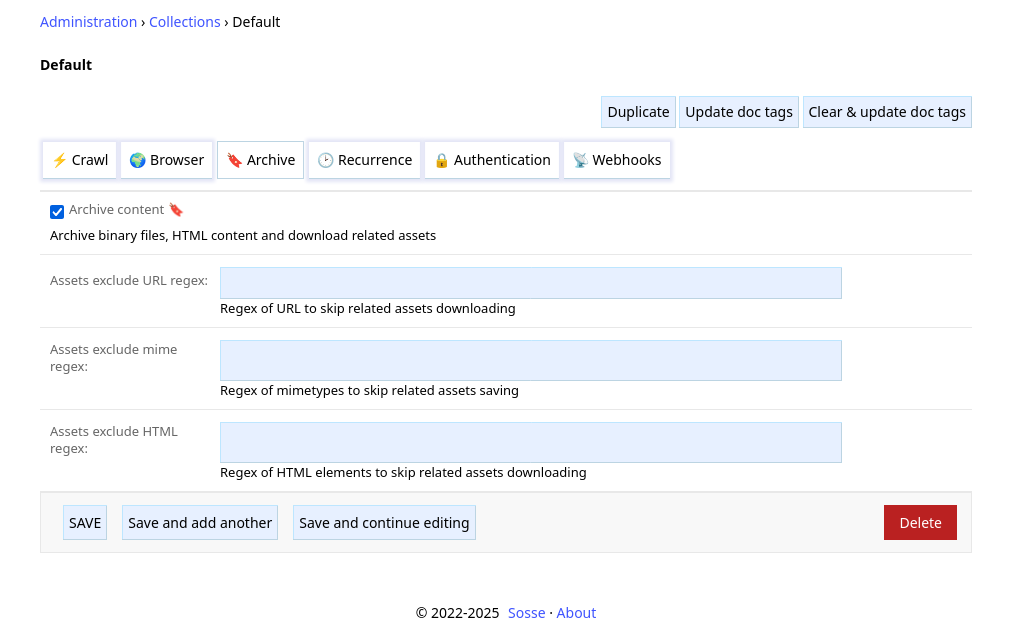
Archive content
This option enables capturing snapshots of binary files, HTML pages and there related images, CSS, etc. it relies on for offline use.
A browser can be used to take the snapshot after dynamic content is loaded.
Assets exclude URL regex
This field defines a regular expression of URL of related assets to skip downloading. For example, setting a regex of
png$ would make the crawler skip the download of URL ending with png.
Assets exclude mime regex
This field defines a regular expression of mimetypes of related assets to skip saving, however files are still
downloaded to determine there mimetype. For example, setting a regex of image/.* would make the crawler skip saving
images.
Assets exclude HTML regex
This field defines a regular expression of HTML element of related assets to skip downloading. For example, setting a
regex of audio|video would make the crawler skip the download of medias.
🕑 Recurrence tab
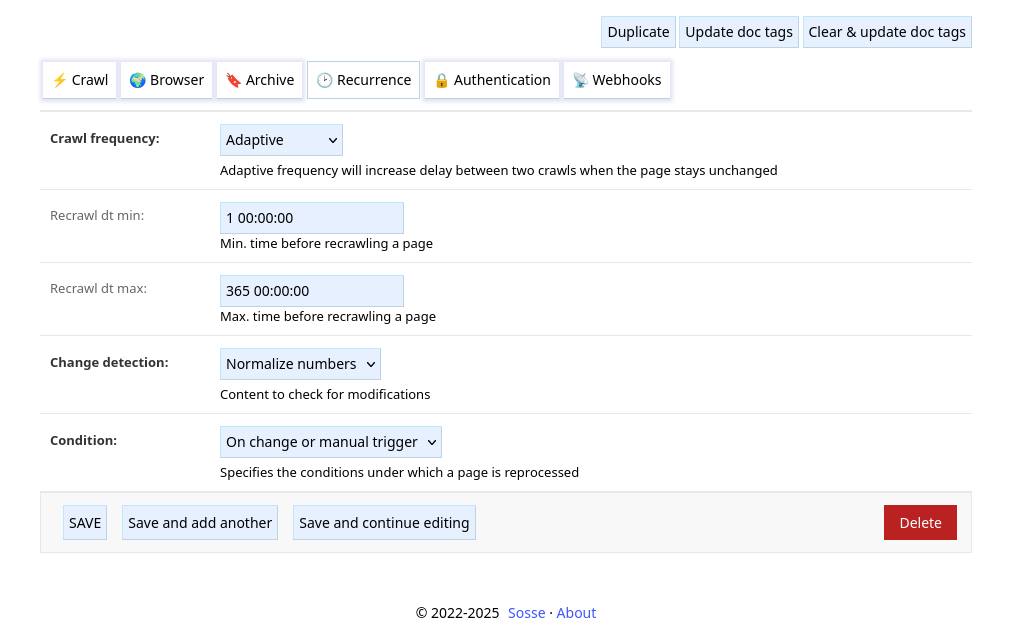
Crawl frequency, Recrawl dt
How often pages should be reindexed:
Once: pages are not recrawled.Constant: pages are recrawled everyRecrawl dt min.Adaptive: pages are recrawled more often when they change. The interval between recrawls starts atRecrawl dt min. Then, when the page is recrawled the interval is multiplied by 2 if the content is unchanged, divided by 2 otherwise. The interval stays enclosed betweenRecrawl dt minandRecrawl dt max.
Change detection
Define how changes between recrawl are detected:
Raw content: raw text content is compared.Normalize numbers: numbers are replaced by 0s before comparing, it can be useful to ignore counters, clock changes, …
Condition
Defines when the page is reprocessed:
On change only: the content is reprocessed only when a change is detected.Always: the content is reprocessed every time the page is recrawled. (this can be useful if the page only has pictures)On change or manual trigger: the content is reprocessed when a change is detected or when the crawl was manually triggered.
🔒 Authentication tab
See Crawling an Authenticated Website for an example on authentication.
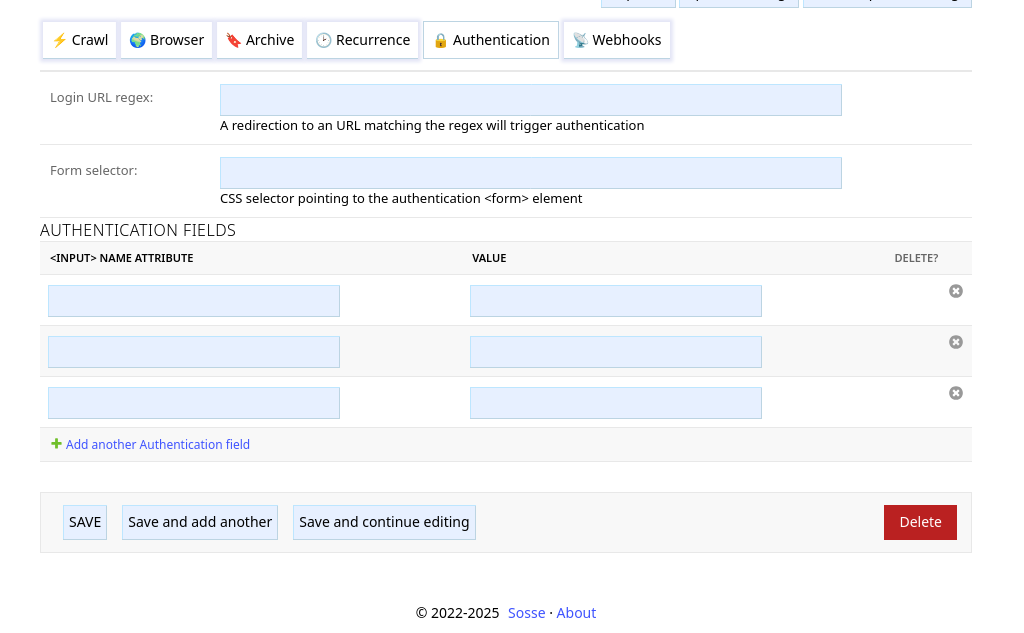
Login URL regex
If crawling a page gets redirected to an URL matching the Login URL regex, the crawler will
attempt to authenticate using the parameters defined below.
Form selector
CSS selector pointing to the authentication <form> element.
Authentication fields
This defines the <input> fields to fill in the form. The fields are matched by their name attribute and filled
with the value. (hidden fields, like CSRF preventing
field, are automatically populated by the crawler)
Actions
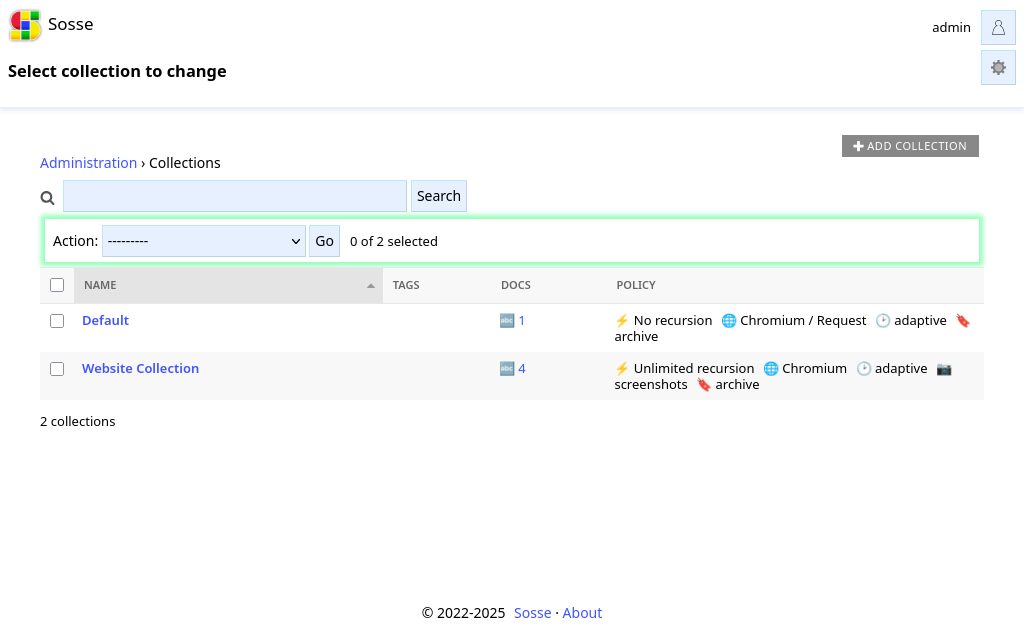
Using the actions dropdown, the following actions can be applied to the selected Collections:
Duplicate: Makes a copy of the Collection.Update doc tags: Updates the tags of all documents in the collection.Clear & update doc tags: Clears the tags of all documents in the collection and updates them.