Website Search
SOSSE allows you to crawl a website and search its pages for specific keywords. This process involves configuring a Crawl Policy to define how the site is crawled, followed by searching for the desired content.
Creating a Crawl Policy
Crawl policies control how SOSSE accesses and logs website content. This section covers key settings; for full details, see the Crawl Policies documentation.
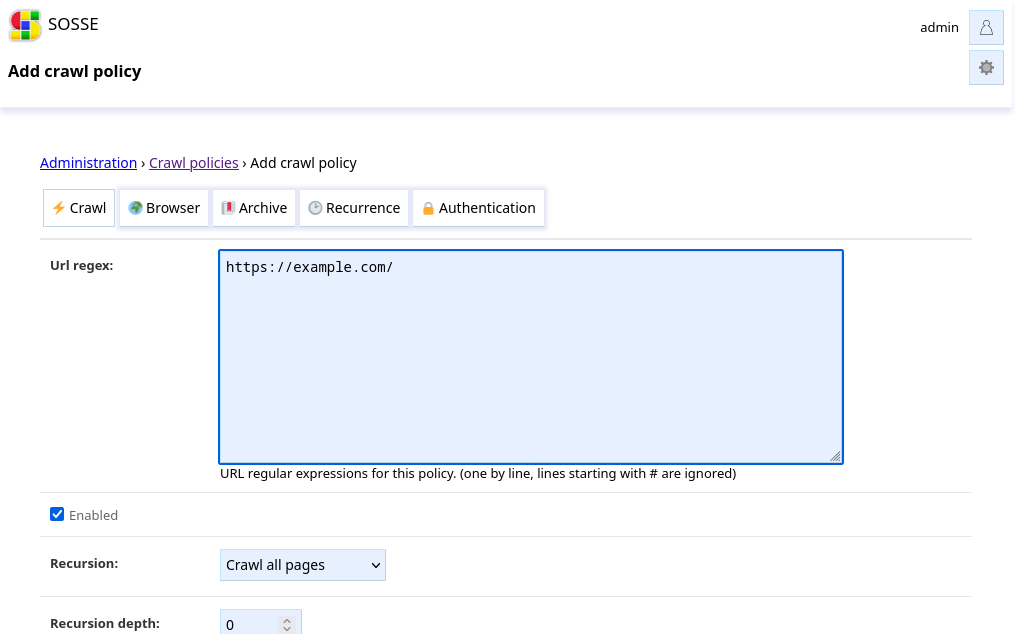
By default, the crawler processes only directly queued pages. Enabling recursion ensures linked pages are also crawled:
In the
⚡ Crawltab, enter a regular expression to match URLs for crawling.In the
🔖 Archivetab, disableArchive contentif you only need to search pages without archiving.In the
🕑 Recurrencetab, adjust the crawl frequency as needed.
Note
By default, SOSSE archives pages, detects if a browser is required for rendering, and adjusts crawl frequency based on site updates. Modify the policy to optimize crawl speed or reduce disk usage.
Starting the Crawl
To begin crawling, go to the Crawl a new URL page and enter the site’s homepage URL.
Review the parameters, then click Confirm. SOSSE will crawl the site and log pages matching the Crawl Policy.
Note
If pages aren’t crawled as expected, check whether the site’s robots.txt file is blocking the crawler. Bypass it only if authorized. You can review this setting in the Domain Settings for the website.
Searching the Website
Once crawling is complete, search for keywords directly from the homepage.
For advanced search options, see the search parameters documentation.
Additional Resources
See Recursive crawling for advanced crawling strategies.
Explore the Guides for further assistance.